
Activate the cleaning lock
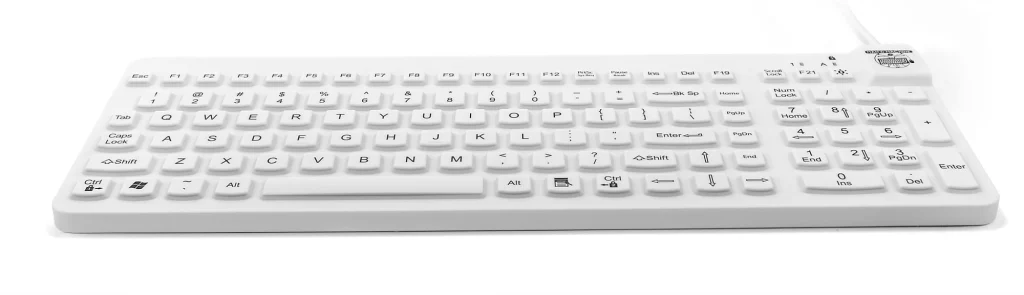
On supported models, holding Ctrl for three seconds engages TruLock. Confirm the indicator and steps in the exact product manual.
Resources & Support / Product guidance
Clean a compatible keyboard at the workstation without sending unintended keystrokes while you wipe its surface.
What to consider
TruLock temporarily disables key input on supported MMI keyboards so staff can clean the device while it remains connected.
On supported models, holding Ctrl for three seconds engages TruLock. Confirm the indicator and steps in the exact product manual.
Clean with the method and disinfectant approved for your keyboard. The lock helps prevent accidental input while the keys are being wiped.
Hold Ctrl again for three seconds on supported models to restore typing. Check the manual if the keyboard does not respond as expected.
At the workstation
Sending a keyboard through a medical washer disrupts the workflow and adds extra work for the staff.
IT staff would need to unplug devices, transport them to a washer, wait through a full cycle, and reconnect them. The workstation is without its keyboard during that time.
Hospital mechanical washers operate at 170°F or higher, a temperature that can damage keyboard electronics.
Metal parts such as a USB connector can rust in the hot, humid washer environment. Cleaning a compatible TruLock keyboard where it is used avoids that wash cycle.